

To get the most out of cloud templates, configure environment variables and a setup script during template creation. The setup script installs dependencies and prepares your development environment automatically, ensuring every team member has an identical setup.
システム要件
- Factoryで有効化されたリポジトリ
- クラウドテンプレートを作成するためのユーザーロール以上の権限
Open Cloud Templates Settings
- In Factory, click the Settings icon from the left sidebar.
- Select Cloud Templates.
Create a New Cloud Template
- Click Create Template.
- Enter the repository you want to use.
- Give your template a friendly name (e.g., “frontend-template”).
- (Optional) Configure a setup script to run during template initialization.
- Click Create.
Factory clones your repo and prepares the environment—this can take a minute for large projects.
セッション内でクラウドテンプレートを起動する
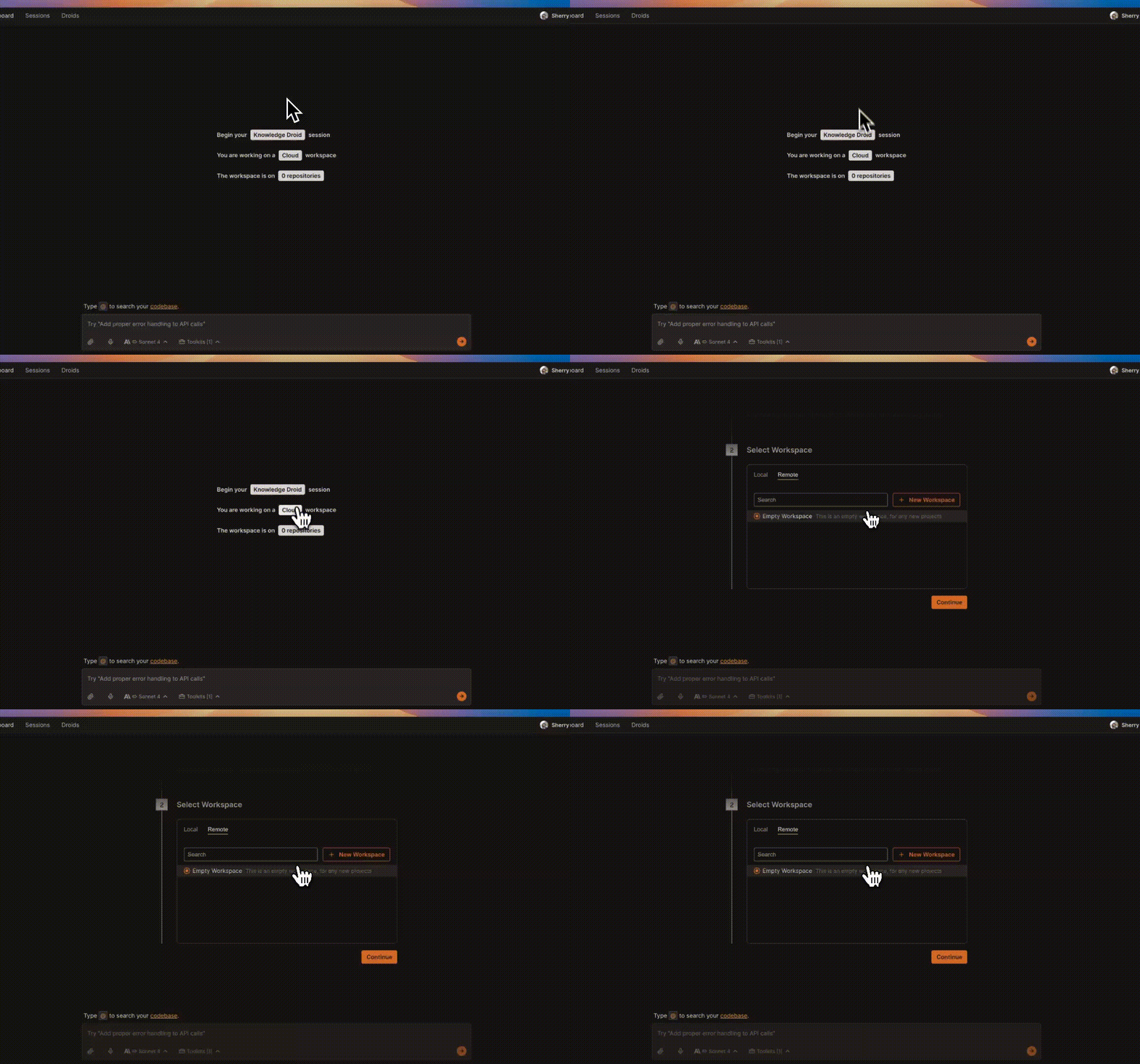
Connect to Cloud Machine
- On the session start page, click the Machine Connection button.
- Choose Remote tab.
- Select the template you created earlier.
- Factory attaches the cloud template to your session.
日常的な使用方法
Run CLI Commands
Use the Terminal toolkit to execute commands like:
npm run dev
pytest
git status
Output streams live into chat and logs.
Edit & Save Files
Open files from the repo, make changes, and save.
Files persist in the cloud template and can be committed upstream when ready.
Files persist in the cloud template and can be committed upstream when ready.
Auto-Save Controls
Auto-save is disabled by default—enable it from the Session Settings panel whenever you want live file syncing.
トラブルシューティングとヘルプ
Can't connect from session
Can't connect from session
Ensure you:
- Selected Remote Machine (not Local).
- Refresh the page, or try again in a different session
Need More Help?
Visit the full Cloud Template Troubleshooting Guide