> ## Documentation Index
> Fetch the complete documentation index at: https://docs.factory.ai/llms.txt
> Use this file to discover all available pages before exploring further.
# Zed
> Use Factory Droid as a custom AI agent inside Zed, with full MCP server support.
## Setup
Before wiring Zed to Factory Droid, make sure you have Zed installed. Afterwards:
1. [Install the Factory Droid extension.](https://zed.dev/extensions/factory-droid)
2. Open the Agent Panel.
3. Click the **+** button in the top-right corner.
4. In the agent dropdown, select **Factory Droid**.
5. If you are unauthenticated you will see a message indicating you must authenticate.
1. Keep track of the device code rendered, and click the "Login" button.
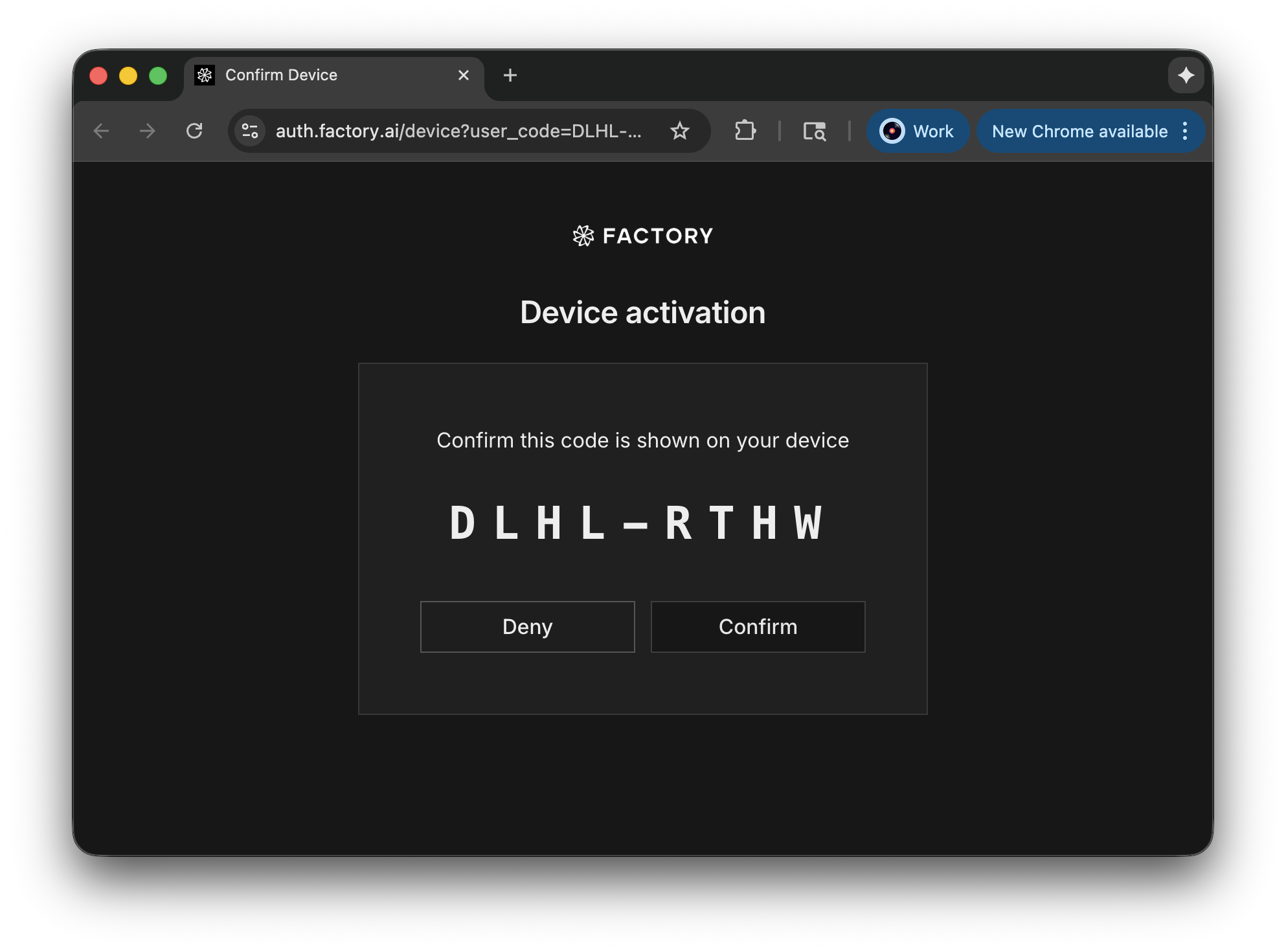
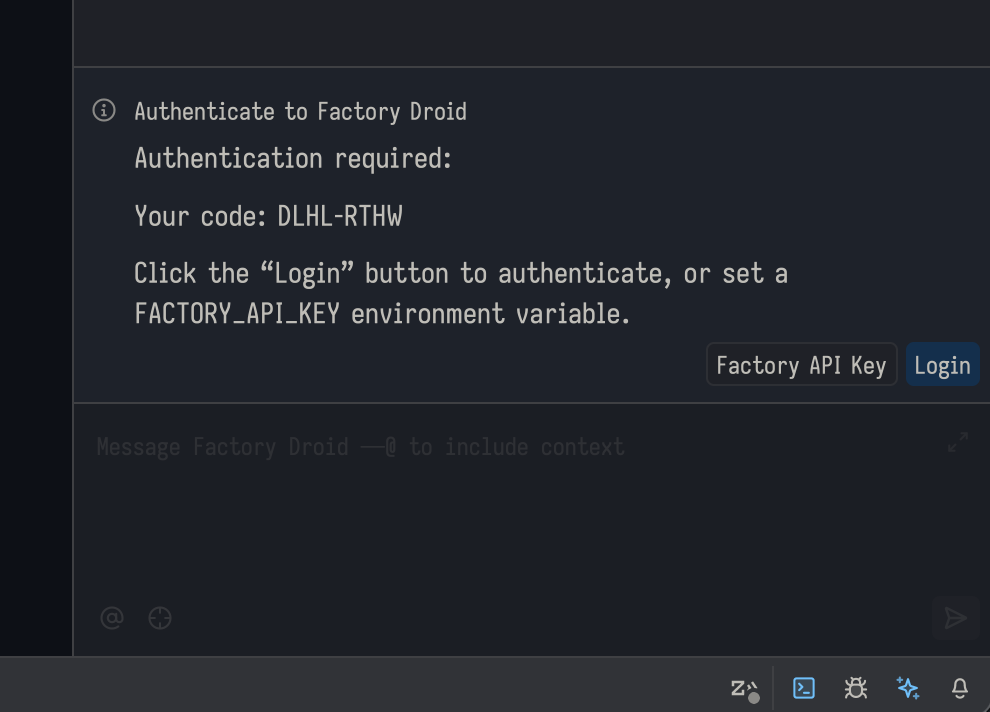 2. This will open your web browser and ask you to login/signup to Factory, followed by a screen to confirm your device's code.
 ## (Alternative) Manual Setup
If you prefer to manually configure Droid inside Zed, you can follow the instructions below.
1. **Install the Droid CLI (supported on all operating systems except Windows ARM machines)**
* Install via:
```bash theme={null}
curl -fsSL https://app.factory.ai/cli | sh
```
* Ensure `droid` is on your PATH, or note its full path.
2. **Zed installed**
* Zed on macOS, Linux, or x86\_64 Windows.
* Access to `~/.config/zed/settings.json`.
3. **(Optional) Factory API key** - instead of using the login flow, you can set up an API key:
* Sign up at [https://app.factory.ai](https://app.factory.ai).
* Configure billing if required.
* Create an API key at [https://app.factory.ai/settings/api-keys](https://app.factory.ai/settings/api-keys).
* Set the `FACTORY_API_KEY` environment variable in your shell (for example, add `export FACTORY_API_KEY=your_key_here` to your shell profile).
You cannot create a Factory account or manage billing from inside Zed. All
account setup happens in the Factory App.
### Configure Factory Droid as an Agent (`agent_servers`)
Edit `~/.config/zed/settings.json` and add a **Factory Droid** entry under `agent_servers`:
```json theme={null}
"agent_servers": {
"Factory Droid": {
"type": "custom",
"command": "*path/to/droid/cli*",
"args": ["exec", "--output-format", "acp"]
}
}
```
* `type: "custom"` – tells Zed this is a user-defined agent
* `command` – full path to the `droid` binary
* `args` – run Droid in exec mode and speak ACP to Zed
If you prefer to use an API key instead of the login flow, add an `env` block:
```json theme={null}
"agent_servers": {
"Factory Droid": {
"type": "custom",
"command": "*path/to/droid/cli*",
"args": ["exec", "--output-format", "acp"],
"env": {
"FACTORY_API_KEY": "$FACTORY_API_KEY"
}
}
}
```
## Start a Droid Session in Zed
Once `agent_servers` and `context_servers` are configured, you can start chatting with Droid from the Agent Panel.
### Open the Agent Panel
* macOS: `Cmd` + `?`
* Linux/Windows: `Ctrl` + `?`
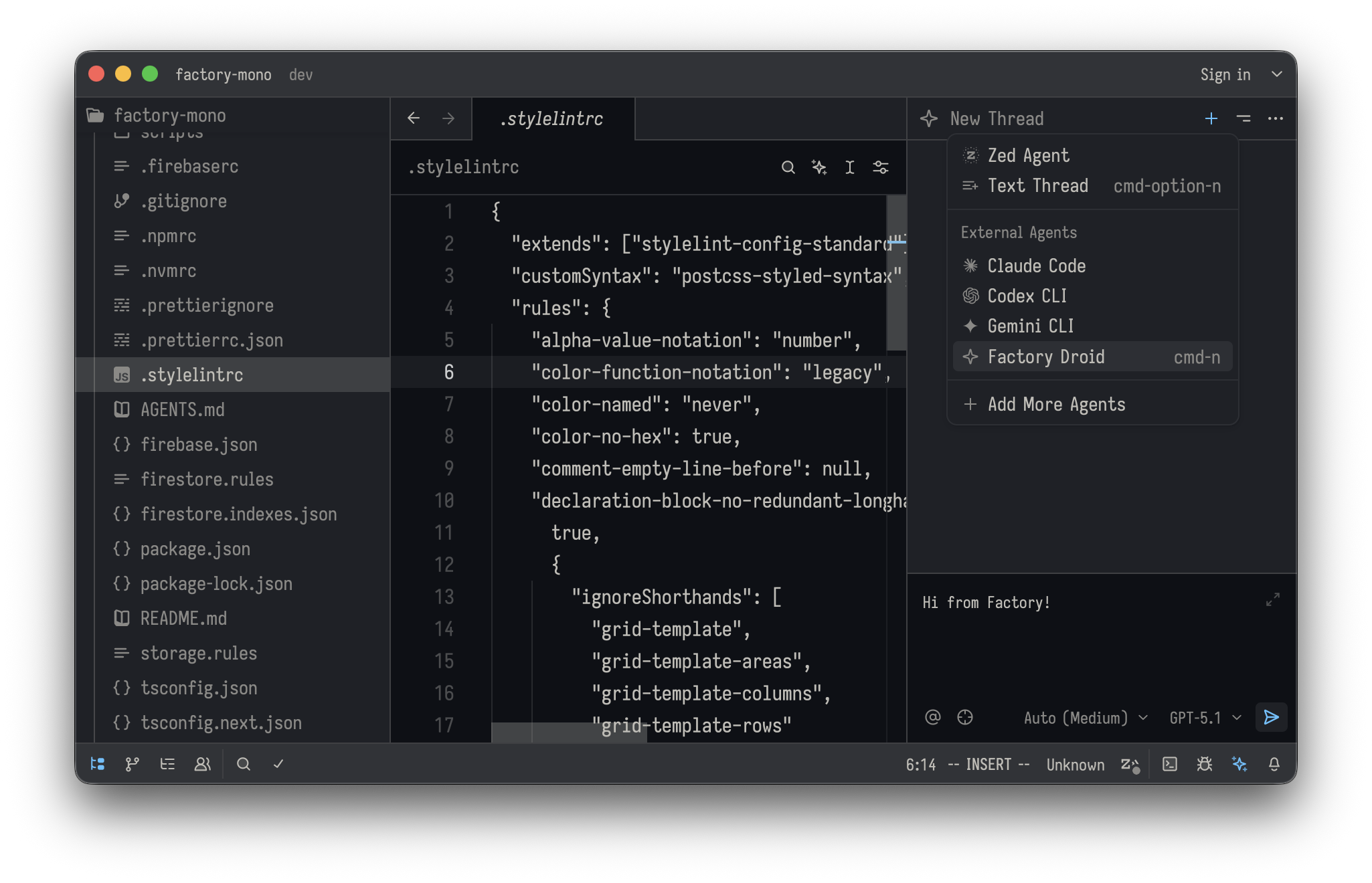
### Start a New Chat with Factory Droid
1. Open the Agent Panel.
2. Click the **+** button in the top-right corner.
3. In the agent dropdown, select **Factory Droid**.
4. Start chatting.
## (Alternative) Manual Setup
If you prefer to manually configure Droid inside Zed, you can follow the instructions below.
1. **Install the Droid CLI (supported on all operating systems except Windows ARM machines)**
* Install via:
```bash theme={null}
curl -fsSL https://app.factory.ai/cli | sh
```
* Ensure `droid` is on your PATH, or note its full path.
2. **Zed installed**
* Zed on macOS, Linux, or x86\_64 Windows.
* Access to `~/.config/zed/settings.json`.
3. **(Optional) Factory API key** - instead of using the login flow, you can set up an API key:
* Sign up at [https://app.factory.ai](https://app.factory.ai).
* Configure billing if required.
* Create an API key at [https://app.factory.ai/settings/api-keys](https://app.factory.ai/settings/api-keys).
* Set the `FACTORY_API_KEY` environment variable in your shell (for example, add `export FACTORY_API_KEY=your_key_here` to your shell profile).
You cannot create a Factory account or manage billing from inside Zed. All
account setup happens in the Factory App.
### Configure Factory Droid as an Agent (`agent_servers`)
Edit `~/.config/zed/settings.json` and add a **Factory Droid** entry under `agent_servers`:
```json theme={null}
"agent_servers": {
"Factory Droid": {
"type": "custom",
"command": "*path/to/droid/cli*",
"args": ["exec", "--output-format", "acp"]
}
}
```
* `type: "custom"` – tells Zed this is a user-defined agent
* `command` – full path to the `droid` binary
* `args` – run Droid in exec mode and speak ACP to Zed
If you prefer to use an API key instead of the login flow, add an `env` block:
```json theme={null}
"agent_servers": {
"Factory Droid": {
"type": "custom",
"command": "*path/to/droid/cli*",
"args": ["exec", "--output-format", "acp"],
"env": {
"FACTORY_API_KEY": "$FACTORY_API_KEY"
}
}
}
```
## Start a Droid Session in Zed
Once `agent_servers` and `context_servers` are configured, you can start chatting with Droid from the Agent Panel.
### Open the Agent Panel
* macOS: `Cmd` + `?`
* Linux/Windows: `Ctrl` + `?`
### Start a New Chat with Factory Droid
1. Open the Agent Panel.
2. Click the **+** button in the top-right corner.
3. In the agent dropdown, select **Factory Droid**.
4. Start chatting.
 ## Resume Existing Sessions
Zed does not currently provide a way to reload or restore past Factory Droid sessions from the Agent Panel.
* Each Agent Panel conversation is effectively a fresh session.
* For longer work streams, keep the panel open or start new chats with a brief recap so Droid can quickly reorient.
## Editor Context and Limitations
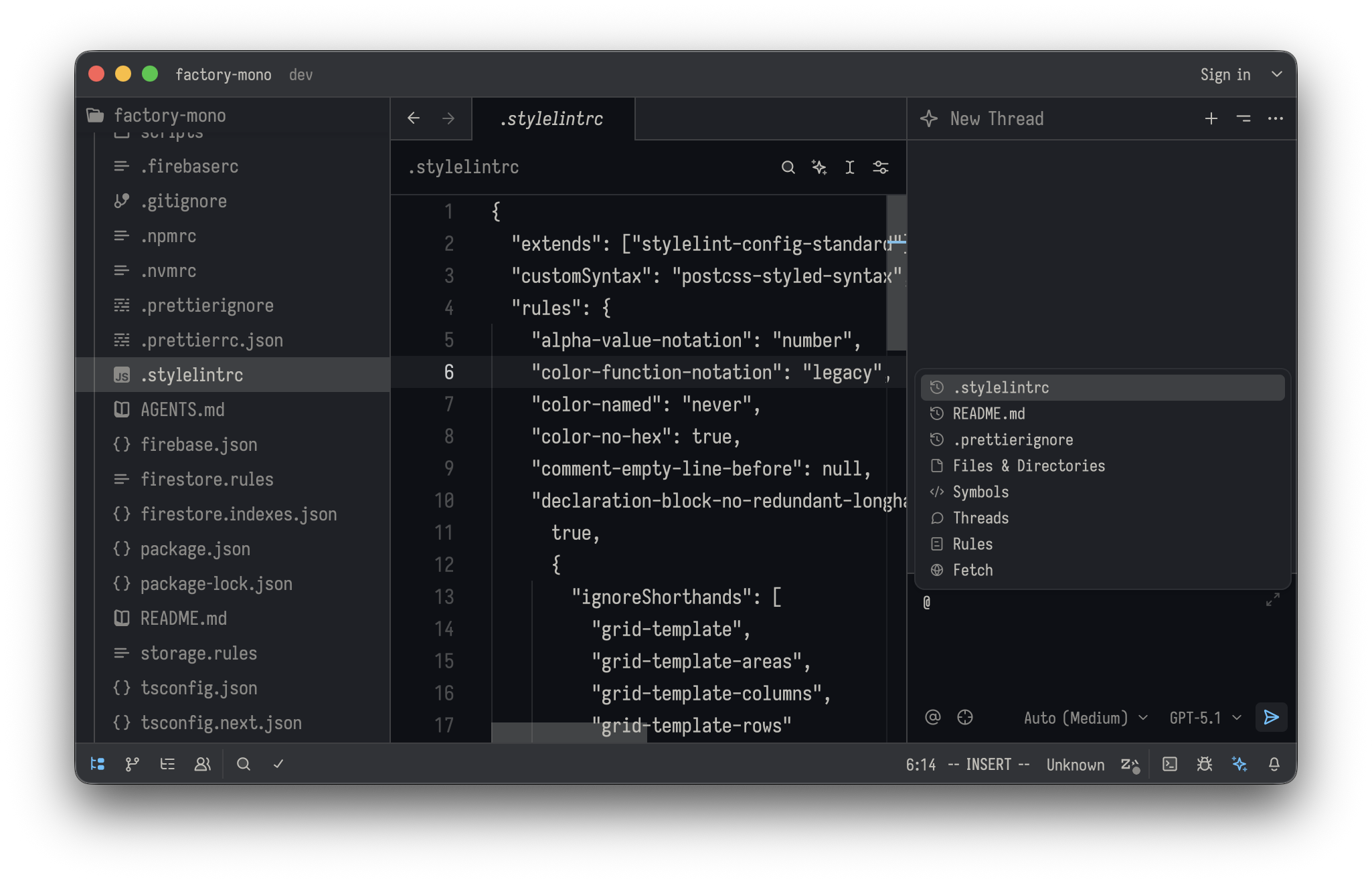
There is no dedicated Factory Droid plugin for Zed yet, but Zed supports **`@`-tagging files** inside agent chats.
* Use `@` to reference relevant files when you ask Droid to inspect or modify code.
* Combine `@`-tags with plain-language instructions, just as you would in the CLI.
Example:
```text theme={null}
Refactor the state management in @src/components/TodoList.tsx to use a reducer instead of multiple useState hooks.
```
## Resume Existing Sessions
Zed does not currently provide a way to reload or restore past Factory Droid sessions from the Agent Panel.
* Each Agent Panel conversation is effectively a fresh session.
* For longer work streams, keep the panel open or start new chats with a brief recap so Droid can quickly reorient.
## Editor Context and Limitations
There is no dedicated Factory Droid plugin for Zed yet, but Zed supports **`@`-tagging files** inside agent chats.
* Use `@` to reference relevant files when you ask Droid to inspect or modify code.
* Combine `@`-tags with plain-language instructions, just as you would in the CLI.
Example:
```text theme={null}
Refactor the state management in @src/components/TodoList.tsx to use a reducer instead of multiple useState hooks.
```
 ## Models and Autonomy
Model selection and autonomy behavior inside Zed follow the same rules as the Droid CLI.
* Choose your model and reasoning level using the same patterns described in [Available Models](/models).
* Use lower autonomy for planning and higher autonomy once you trust the plan.
* Zed supports **`Shift+Tab` for switching autonomy modes**, matching the default shortcut in the Droid CLI.
## (Optional) Configure MCP Servers (`context_servers`)
Zed’s `context_servers` section is where you configure **MCP servers**. Each entry is a real MCP server that exposes tools and context, which Factory Droid can call while you chat.
For example, to add a Chrome DevTools MCP server:
```json theme={null}
"context_servers": {
"chrome-devtools": {
"command": "npx",
"args": ["-y", "chrome-devtools@latest"]
}
}
```
* `chrome-devtools` – server name used inside Zed
* `command` – executable to run (here, `npx`)
* `args` – how to launch the MCP server; update the package name to the actual server you want to use
You can define multiple MCP servers under `context_servers` for internal tools, data sources, or other services.
When you chat with **Factory Droid** in Zed, it can call any of these MCP servers as tools.
## Troubleshooting
If Factory Droid does not appear or respond in Zed:
* Verify the CLI:
* Run `droid exec --output-format acp` in a regular terminal to ensure the CLI and API key work.
* Check `settings.json`:
* Confirm the `agent_servers` and `context_servers` blocks are valid JSON (including commas and quotes).
* Ensure the `command` and `args` for both Droid and your MCP servers run successfully outside Zed.
* Confirm your OS:
* Make sure you are not running on Windows on ARM.
If an MCP server is failing, try launching it manually with the same `command` and `args` used in `context_servers` to debug configuration or dependency issues.
## Models and Autonomy
Model selection and autonomy behavior inside Zed follow the same rules as the Droid CLI.
* Choose your model and reasoning level using the same patterns described in [Available Models](/models).
* Use lower autonomy for planning and higher autonomy once you trust the plan.
* Zed supports **`Shift+Tab` for switching autonomy modes**, matching the default shortcut in the Droid CLI.
## (Optional) Configure MCP Servers (`context_servers`)
Zed’s `context_servers` section is where you configure **MCP servers**. Each entry is a real MCP server that exposes tools and context, which Factory Droid can call while you chat.
For example, to add a Chrome DevTools MCP server:
```json theme={null}
"context_servers": {
"chrome-devtools": {
"command": "npx",
"args": ["-y", "chrome-devtools@latest"]
}
}
```
* `chrome-devtools` – server name used inside Zed
* `command` – executable to run (here, `npx`)
* `args` – how to launch the MCP server; update the package name to the actual server you want to use
You can define multiple MCP servers under `context_servers` for internal tools, data sources, or other services.
When you chat with **Factory Droid** in Zed, it can call any of these MCP servers as tools.
## Troubleshooting
If Factory Droid does not appear or respond in Zed:
* Verify the CLI:
* Run `droid exec --output-format acp` in a regular terminal to ensure the CLI and API key work.
* Check `settings.json`:
* Confirm the `agent_servers` and `context_servers` blocks are valid JSON (including commas and quotes).
* Ensure the `command` and `args` for both Droid and your MCP servers run successfully outside Zed.
* Confirm your OS:
* Make sure you are not running on Windows on ARM.
If an MCP server is failing, try launching it manually with the same `command` and `args` used in `context_servers` to debug configuration or dependency issues.