> ## Documentation Index
> Fetch the complete documentation index at: https://docs.factory.ai/llms.txt
> Use this file to discover all available pages before exploring further.
# AutoWiki
> AutoWiki generates comprehensive, structured Wikis for your repositories.
AutoWiki generates comprehensive, structured Wikis for your repositories. It analyzes each codebase and produces browsable documentation with architecture overviews, module breakdowns, and cross-linked pages -- then keeps each Wiki current as your code changes.
 Run `/wiki` in the Droid CLI to produce a Wiki for any repo
Run `/install-wiki` to refresh Wikis on every push
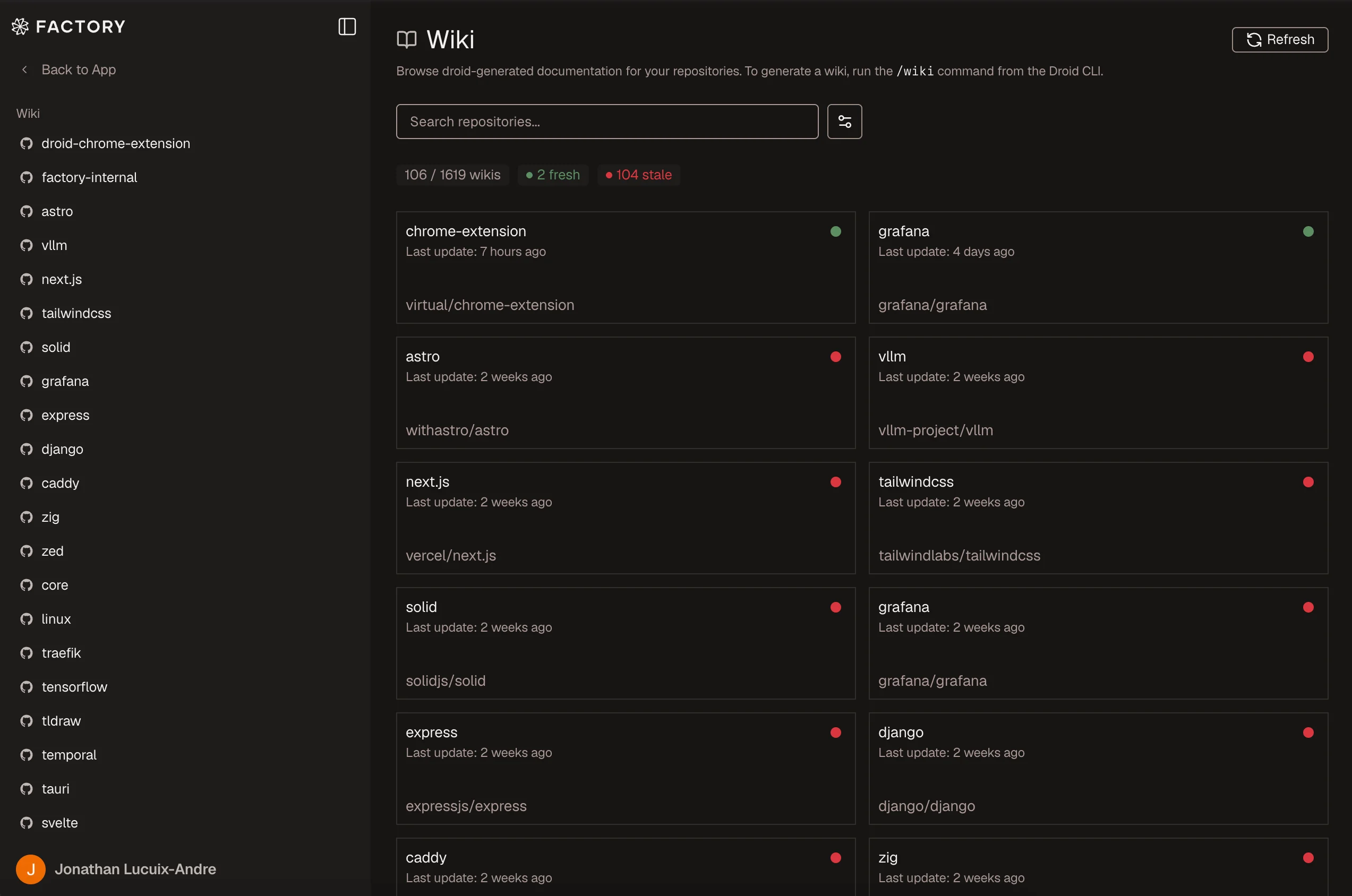
Read, search, and export Wikis in the Factory App
## How it works
Run `/wiki` inside a Droid session. Droid analyzes the codebase and produces
a set of structured markdown pages covering architecture, modules, APIs,
and conventions.
Cloud Sync stores the generated Wiki in the Factory App, where it becomes
browsable at [app.factory.ai/wiki](https://app.factory.ai/wiki). Each
sync is versioned so you can compare changes over time.
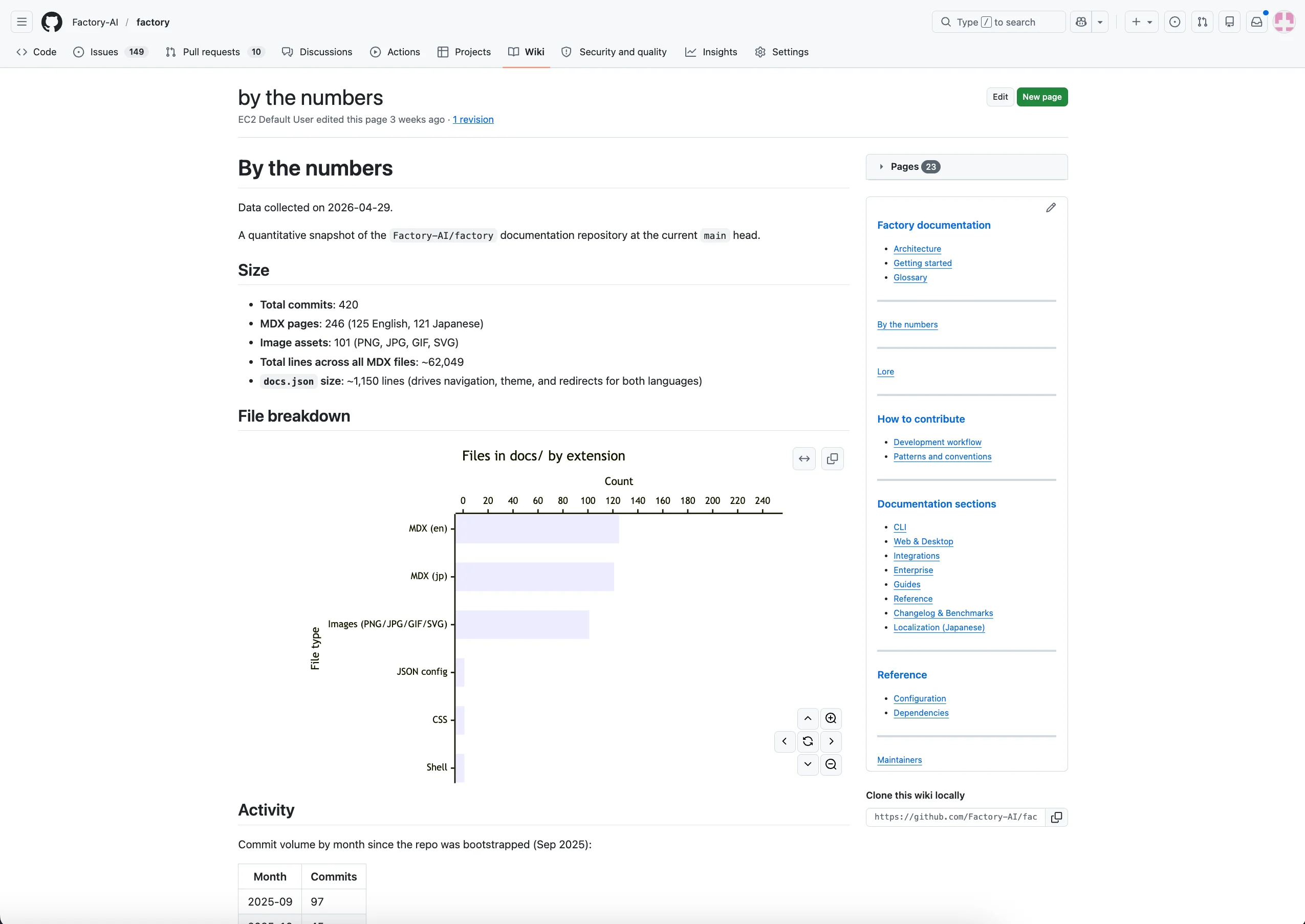
For GitHub-hosted repositories, AutoWiki can push generated Wikis to the
repo's built-in GitHub Wiki tab. Internal links are rewritten, a sidebar is
generated, and the content is pushed to `{repo}.wiki.git`.
Run `/install-wiki` to create a CI workflow (GitHub Actions or GitLab CI)
that regenerates the Wiki on every push to the default branch -- or
trigger a refresh from the Factory App at any time.
## GitHub Wiki sync
When AutoWiki generates a Wiki for a GitHub-hosted repository, Factory can optionally sync the content to GitHub Wiki. Your team can browse the same documentation directly from the repository page without visiting the Factory App. For details on how the sync works, see [Generate a Wiki](/cli/features/wiki/generate#github-wiki-sync).
Run `/wiki` in the Droid CLI to produce a Wiki for any repo
Run `/install-wiki` to refresh Wikis on every push
Read, search, and export Wikis in the Factory App
## How it works
Run `/wiki` inside a Droid session. Droid analyzes the codebase and produces
a set of structured markdown pages covering architecture, modules, APIs,
and conventions.
Cloud Sync stores the generated Wiki in the Factory App, where it becomes
browsable at [app.factory.ai/wiki](https://app.factory.ai/wiki). Each
sync is versioned so you can compare changes over time.
For GitHub-hosted repositories, AutoWiki can push generated Wikis to the
repo's built-in GitHub Wiki tab. Internal links are rewritten, a sidebar is
generated, and the content is pushed to `{repo}.wiki.git`.
Run `/install-wiki` to create a CI workflow (GitHub Actions or GitLab CI)
that regenerates the Wiki on every push to the default branch -- or
trigger a refresh from the Factory App at any time.
## GitHub Wiki sync
When AutoWiki generates a Wiki for a GitHub-hosted repository, Factory can optionally sync the content to GitHub Wiki. Your team can browse the same documentation directly from the repository page without visiting the Factory App. For details on how the sync works, see [Generate a Wiki](/cli/features/wiki/generate#github-wiki-sync).
 GitHub requires GitHub Wiki to be initialized before Factory can sync to it.
If you haven't used GitHub Wiki before, create the first page manually at
`https://github.com/{owner}/{repo}/wiki`, then re-run `/wiki`.
## Enterprise controls
### AutoWiki Cloud Sync
Organizations that need to prevent AutoWiki content from being stored in the Factory App can disable **AutoWiki Cloud Sync**. This is an org-level enterprise control available at [app.factory.ai](https://app.factory.ai) under **Settings > Enterprise Controls**.
GitHub requires GitHub Wiki to be initialized before Factory can sync to it.
If you haven't used GitHub Wiki before, create the first page manually at
`https://github.com/{owner}/{repo}/wiki`, then re-run `/wiki`.
## Enterprise controls
### AutoWiki Cloud Sync
Organizations that need to prevent AutoWiki content from being stored in the Factory App can disable **AutoWiki Cloud Sync**. This is an org-level enterprise control available at [app.factory.ai](https://app.factory.ai) under **Settings > Enterprise Controls**.
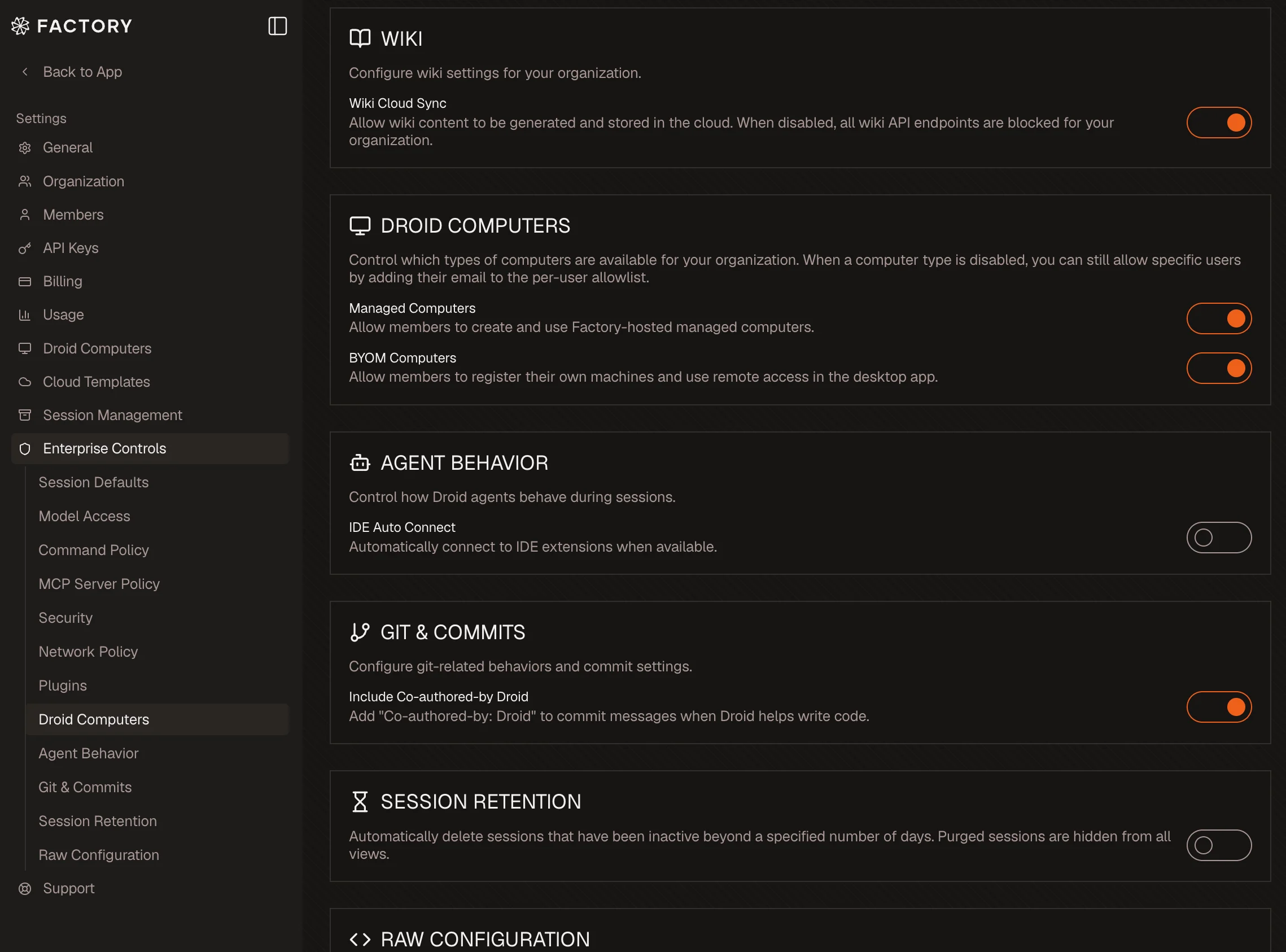 When AutoWiki Cloud Sync is **disabled**:
* All AutoWiki API endpoints return 403 for your organization
* The `/wiki` command will not store content in the Factory App
* GitHub Wiki sync is also skipped from the Droid CLI
* The AutoWiki page in the Factory App shows no content
AutoWiki Cloud Sync is **enabled by default**. Only org managers can toggle this setting.
For more on how enterprise controls work, see [Hierarchical Settings & Org Control](/enterprise/hierarchical-settings-and-org-control).
## What's next
Step-by-step guide to producing your first Wiki
Install a CI action that keeps Wikis current
Search, read, and export Wikis
Learn how org-level controls govern AutoWiki and other features
When AutoWiki Cloud Sync is **disabled**:
* All AutoWiki API endpoints return 403 for your organization
* The `/wiki` command will not store content in the Factory App
* GitHub Wiki sync is also skipped from the Droid CLI
* The AutoWiki page in the Factory App shows no content
AutoWiki Cloud Sync is **enabled by default**. Only org managers can toggle this setting.
For more on how enterprise controls work, see [Hierarchical Settings & Org Control](/enterprise/hierarchical-settings-and-org-control).
## What's next
Step-by-step guide to producing your first Wiki
Install a CI action that keeps Wikis current
Search, read, and export Wikis
Learn how org-level controls govern AutoWiki and other features